

In this post I’ll cover using the Azure App Configuration emulator for local development.
If you want to use Azure App Configuration, but don’t have permissions to create resources in Azure, or want to do PoCs, or do some offline development, the App Configuration emulator is a good option. As of December 2025 the emulator supports all of the APIs, except the snapshots feature. Unlike the Event Hubs emulator, which I discussed in my previous post, it doesn’t appear that there are restrictions on the number of items you can add to the App Configuration emulator.
Setup
You need a version of Docker running locally (I have tested Rancher Desktop, but others should work.) There isn’t much other setup needed. You’ll probably want to create a folder on your local machine to hold the persistent data for the emulator. On a Mac or Linux machine you will have to chmod 0744 the folder so Docker can read and write to it.
localFolder = "/localFolder" # 👈 change this
mkdir -p $localFolder
chmod 0744 $localFolder
Running locally
To start it in Docker using the folder for persistence, use this command:
docker run \
    --detach \
    --publish 8483:8483 \
    --volume "$localFolder:/app/.aace" \
    --env Tenant:AnonymousAuthEnabled=true \
    --env Authentication:Anonymous:AnonymousUserRole=Owner \
    --name appconfig \
    mcr.microsoft.com/azure-app-configuration/app-configuration-emulator:1.0.1
The docker command explained: (skip if you know Docker)
- run : run a new container
- –detach : run in the background, i.e. don’t tie up your console
- –publish 8483:8483 : map port 8483 in the container to port 8483 on the host
- –volume “$localFolder:/app/.aace” : mount the local folder into the container for persistence
- –env * : set env vars to enable anonymous auth for the portal
- –name appconfig : name the container
appconfigfor easier management - mcr.microsoft.com/azure-app-configuration/app-configuration-emulator:1.0.1 : the image to use from the Microsoft Container Registry
Once it is started, you can hit its portal at http://localhost:8483. (See troubleshooting below if it doesn’t come up). The portal documentation is rudimentary, as is the portal. It has basic CRUD operations, but is not as feature-rich as the Azure Portal. One thing that the Azure portal has is a way to split keys into their hierarchical parts for easier viewing. For example, a key named MyApp:Logging:LogLevel:Default can be shown as a hierarchy of folders in the Azure portal, but just as a string in the emulator’s.
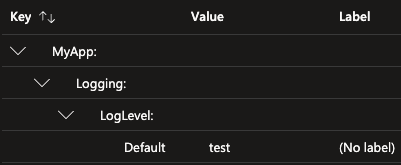 Azure Portal.
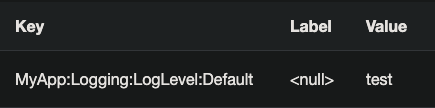 App Config Emulator.
Its key and label filtering is a bit quirky. It only filters by prefix, is case-sensitive, and you must have a trailing * to get any results. Valid examples for the key above are: MyApp* or MyApp:Logging*. These will find nothing: *Logging*, Logging, myapp*.
They have a .NET example in the repo, which uses HMAC auth, which is annoying since the default is to use anonymous auth (for the portal). After banging my head against trying to get anonymous auth to work with the SDK, I found I could update the container’s configuration to use both methods. Here’s a Docker compose file I used. You will need to set the localFolder environment variable to point to your local folder for persistence.
version: '3.8'
services:
  appconfig:
    image: mcr.microsoft.com/azure-app-configuration/app-configuration-emulator:1.0.1
    ports:
      - "8483:8483"
    volumes:
      - "${localFolder}:/app/.aace"
    environment:
      Tenant__AnonymousAuthEnabled: true
      Authentication__Anonymous__AnonymousUserRole: "Owner"
      Tenant__HmacSha256Enabled: true
      Tenant__AccessKeys__0__Id: "emulator-test-id"
      Tenant__AccessKeys__0__Secret: "abcdefghijklmnopqrstuvwxyz1234567890"
    restart: unless-stopped
You can use the App Configuration REST API on the emulator. Here’s snippet from a PowerShell function I created to import values into the emulator that are in the same format that az appconfig kv import uses for its imports.
param(
    [Parameter(Mandatory)]
    [string] $ImportFile,
    [string] $Label,
    [hashtable]$tags = @{}
 )
$BaseUri = "http://localhost:8483"
$apiVersion="1.0"

if ($Label) {
    $labelValue="&label=$Label"
} else {
    $labelValue=""
}

$values = Get-Content -Path $ImportFile | ConvertFrom-Json

foreach ($v in (Get-Member -InputObject $values -MemberType NoteProperty)) {
    $name = $v.Name
    $Key = $name
    $value = @{
        value = $values.$name
        tags = $tags
    }
    Invoke-RestMethod -Uri "$BaseUri/kv/${Key}?api-version=$apiVersion$labelValue" `
                      -Method PUT `
                      -Body $($value | ConvertTo-Json) `
                      -Headers @{ "Content-Type" = "application/vnd.microsoft.appconfig.kv+json" }
}
Here’s an example JSON file I used to import some Serilog configuration values:
{
  "Serilog:Using:0": "Serilog.Sinks.Console",
  "Serilog:MinimumLevel:Default": "Information",
  "Serilog:WriteTo:0:Name": "Console",
  "Serilog:Enrich:0": "FromLogContext",
  "Serilog:Enrich:1": "WithMachineName",
  "Serilog:Enrich:2": "WithThreadId"
}
The PowerShell snippet only does non-secret values. The format of key vault secrets in an az appconfig kv import JSON has the uri of the secret instead of the value. Here’s an example:
{
  "DATABASE:CLIENTCONNECTIONSTRING": { "uri": "https://my-aks-kv.vault.azure.net/secrets/sql-connection-string" },
}
I’ll leave it as an exercise for the reader to modify the script to handle key vaults. (Hint: az keyvault secret show)
Stopping it
If you started it with Docker run you can stop it with this. If --rm was used on docker run, this also destroys the container
docker stop appconfig
If you used Docker compose:
docker compose down # destroys the container
# or
docker compose stop # stops without destroying
I recommend mapping a volume for persistence and always making a new container. You could keep the state in the container, but that makes it harder to upgrade or recreate the container.
To wipe out all data, stop the container and delete the files in the local folder.
Configuration
Unlike the Event Hubs emulator, there isn’t much configuration needed to run App Configuration. You can use the portal or API to view or create keys.
Using in .NET
I won’t get into using App Configuration in detail, but will mention a couple changes you may have to make to use the emulator. The connection string will be different and you won’t use the credentials parameter for the AddAzureAppConfiguration.Connect method. Here’s a snippet that will use the emulator if configured, otherwise it will use Azure.
// DefaultAzureCredential is not recommended for Production
var cred = string.IsNullOrEmpty(emulatorUri) ? new DefaultAzureCredential() : null;

configuration.AddAzureAppConfiguration(options =>
{
    if (cred is null)
    {
        options.Connect(connStr); // App Configuration emulator
    }
    else
    {
        options.Connect(new Uri(connStr), cred); // Azure App Configuration in Azure
    }
    ...
});
If you use Azure Key Vault-backed keys for Azure App Configuration, you won’t use them with the emulator, so you won’t have call ConfigureKeyVault to authenticate to it.
Summary
This was a quick tour using the Azure App Configuration emulator for local development. It was pretty easy to set up and use, aside from the issue of getting both anonymous and HMAC auth working together, but now you know how to resolve that.
Troubleshooting
Use docker logs appconfig to see the logs. The last few messages should be:
Hosting environment: Production
Content root path: /app
Now listening on: http://0.0.0.0:8483
Application started. Press Ctrl+C to shut down.
Otherwise, if you get errors, getting the logs again will show more details.
Links
- Azure App Configuration emulator overview
- Repository with samples
- REST API for App Configuration
- Azure CLI app config import
- Azure App Configuration Emulator in the Microsoft Artifact Registry
- What is Azure App Configuration?